You can run a CRM in Google Sheets, and for a freelancer or a team of a few people it works well.
The sheet costs nothing extra, everyone already knows how to use it, and Google has added real structure over the last few years: dropdown chips, tables with typed columns and saved views.
What breaks it is rarely the first hundred contacts. It's the week two people sort the same tab, a follow-up date slips by unnoticed, or nobody can say which email belonged to which deal.
"We're a tiny team right now, and for a while, Google Sheets honestly did everything we needed," begins a Reddit thread titled "Our Google Sheets setup is starting to crack."
This guide builds the sheet properly first, then covers what to do when it cracks.
Quick answer
To build a CRM in Google Sheets:
- Make three tabs, Contacts, Deals and Activity, linked by an ID column.
- Turn each tab into a table with Format > Convert to table and set the column types.
- Make the deal stage a dropdown and give every open deal a follow-up date.
- Highlight overdue follow-ups with conditional formatting and
TODAY(). - Give each person a filter view, so nobody's sorting changes anyone else's screen.
When the sheet starts to crack, keep it and run the pipeline in a synced Notion database, or move to a dedicated CRM.
Can you use Google Sheets as a CRM?
Yes, as long as the job is a list of people, a pipeline and a reminder to follow up. That covers most freelancers, consultants and small sales teams.
"Anyone with a Google Account can create in Sheets," as Google puts it. Tables, dropdown chips and the current cell limit all work on personal accounts, not only on paid Workspace plans.
What a sheet won't do on its own is attach your emails to a contact, remind you on the day a follow-up is due, or stop two people from tripping over each other's filters. Those gaps decide when it's time to add something, covered further down.
What tabs and columns a Google Sheets CRM needs
Three tabs, each with one job, keep the sheet readable as it grows:
- Contacts: one row per person.
- Deals: one row per opportunity, with its stage and next step.
- Activity: one row per call, email or meeting.
A short ID in the first column of Contacts, repeated in the other two tabs, ties them together. It's how a deal knows whom it belongs to without anyone retyping a name.
These headers are a working starting point. Copy them into row 1 of each tab:
| Tab | Columns, in order |
|---|---|
| Contacts | Contact ID, Name, Company, Email, Phone, Source, Owner, Tags |
| Deals | Deal ID, Contact ID, Contact name, Deal, Stage, Value, Owner, Next step, Follow-up date, Last contact |
| Activity | Date, Contact ID, Deal ID, Type, Notes |
Six stages are enough for most pipelines: Lead, Contacted, Qualified, Proposal, Won and Lost. Every extra stage is one more place for a deal to stall without anyone noticing.
How to build a CRM in Google Sheets, step by step
The formulas below assume the column order in the table above, so Stage sits in column E of Deals and Follow-up date in column I.
1. Create the tabs and freeze the header row
Name three tabs Contacts, Deals and Activity, and type the headers into row 1 of each. Then go to View > Freeze and freeze one row, so the headers stay on screen however long the list gets.
2. Convert each tab into a table
Select the headers and the rows below them, then choose Format > Convert to table (Ctrl+Alt+T on Windows, Cmd+Opt+T on Mac). Pick a type for each column:
- Dropdown for Stage, Owner and Source.
- Date for Follow-up date, Last contact and the Activity date.
- Number with currency formatting for Value.
- People chip for Owner, if your team uses Google accounts.
A typed column flags values that don't belong. Set a column to Date, for instance, and "it shows a warning for cells within the column that don't follow this type," per Google's tables help.
3. Make the stage a dropdown
If the Stage column is already a Dropdown table column, edit its options there. Outside a table, select the column and choose Insert > Dropdown, enter the first stage, then use Add another item for the rest.
Anything typed that isn't on the list is rejected by default. To allow it with a warning instead, open Advanced options and select Show a warning. Keep Allow multiple selections for Tags, never for Stage: a deal sits in one stage at a time.
4. Highlight follow-ups that are overdue
On the Deals tab, select the data rows, then choose Format > Conditional formatting. Under "Format cells if," pick Custom formula is and enter:
=AND($I2<>"", $I2<TODAY(), $E2<>"Won", $E2<>"Lost")
Choose a red fill. Every open deal whose follow-up date has passed now turns red.
The flag shows when someone opens the sheet. TODAY() holds the date of the last recalculation, so the sheet won't email anyone the morning a follow-up comes due.
The same tool catches duplicate contacts. On the Contacts tab, a second rule with =COUNTIF($D:$D, $D2)>1 marks every email address that appears twice. To clean them up, use Data > Data cleanup > Remove duplicates.
5. Link the tabs with XLOOKUP
In the Contact name column of Deals (column C), pull the name from Contacts by its ID:
=XLOOKUP(B2, Contacts!A:A, Contacts!B:B, "")
Fix a name once in Contacts and every deal shows the corrected version. The same pattern pulls in Company or Email.
6. Add a pipeline summary
Add a fourth tab named Dashboard, list the six stages in column A from row 2 down, and count deals and value per stage next to them:
- Deals in a stage:
=COUNTIF(Deals!E:E, A2) - Value in a stage:
=SUMIF(Deals!E:E, A2, Deals!F:F)
Copy both formulas down the column. You now see where the money sits and which stage is filling up.
7. Give everyone their own filter view
Plain filters are shared: "When you add a filter, anyone with access to your spreadsheet will find the filter too," Google warns. That's how one person's sort ends up rearranging everyone's screen.
Filter views fix it. Choose Data > Create filter view, filter Owner to yourself, then click Save View. A filter view "only applies to your view of the spreadsheet," so each person keeps a "my deals" view without touching anyone else's.
Tables offer the same through their Views menu, including a group by view that stacks deals under each stage.
8. Capture leads with Google Forms
If leads come in through a form, connect it: in Google Forms, open Responses, click Link to Sheets and choose Select existing spreadsheet to pick the CRM file. Each submission lands as a new row in a responses table, ready to copy into Contacts or look up from it.
9. Turn on notifications and protect the formulas
Choose Tools > Notification settings > Edit notifications to get an email when Any changes are made or A user submits a form, either Email - daily digest or Email - right away. These are for you alone: "You can only set up notifications for yourself."
Then protect the columns that hold formulas. Choose Data > Protect sheets and ranges, add the range and select Show a warning when editing this range, or restrict who can edit it.
Google is clear that protection "shouldn't be used as a security measure," so share the file only with people you trust.
Is there a Google Sheets CRM template?
Google Sheets has pre-built tables under Insert > Pre-built table, built "for everyday tasks like project management, inventory management, event planning and more." Google doesn't name a CRM among them.
The header table above works as your template. Paste it into a blank spreadsheet, then follow steps 2 to 9.
Where a Google Sheets CRM starts to crack
Size is rarely the problem. A spreadsheet now holds "up to 20 million cells," after Google doubled the limit in September 2026. The cracks come from how people work with it. "When I had 30-40 contacts it was fine. Now it's grown and I'm genuinely dropping the ball," a solo consultant with about 150 leads wrote on Reddit.
The usual signs:
- Follow-ups slip. Red rows only help someone who opens the sheet. Built-in notifications report edits, not due dates, and an emailed reminder takes an Apps Script trigger you write and maintain yourself.
- Two people, one view. Sorting and plain filters change the sheet for everyone. Filter views help only if everyone actually uses them.
- Emails stay in Gmail. The Activity tab is only as complete as the last person who bothered to log a call.
- A contact is spread over three tabs. Seeing one person's deals and history means lookups and filters, not one page.
- Duplicates creep in from forms and pasted lists faster than anyone removes them.
- The phone is awkward. Typing into a grid on a small screen is slow, and "on mobile, you currently can't select multiple dropdown options even when multiple selection is enabled."
If three or more of these sound familiar, the sheet has stopped being enough on its own.
What to do when the sheet cracks
There are three ways forward, and which one fits depends on who still needs the sheet:
- Keep the sheet and add Notion. The sheet still matters to someone (your accountant, a client who checks a tab, teammates who will never leave Sheets), but you want a board, a page per deal for notes and links to the people involved. A two-way sync keeps both sides matched, so nobody types anything twice, which is what usually sinks a second system.
- Move to a dedicated CRM. You need email tracking, automated sequences and call logging built in. The best CRMs for freelancers compares the main options with their real prices.
- Move everything into Notion. Nobody needs the sheet anymore. Import it once as a CSV, as described in the Google Sheets and Notion guide, and build from a Notion CRM, one of the best Notion CRM templates or our free Circles of Trust contacts template.
How to keep the sheet and run the pipeline in Notion
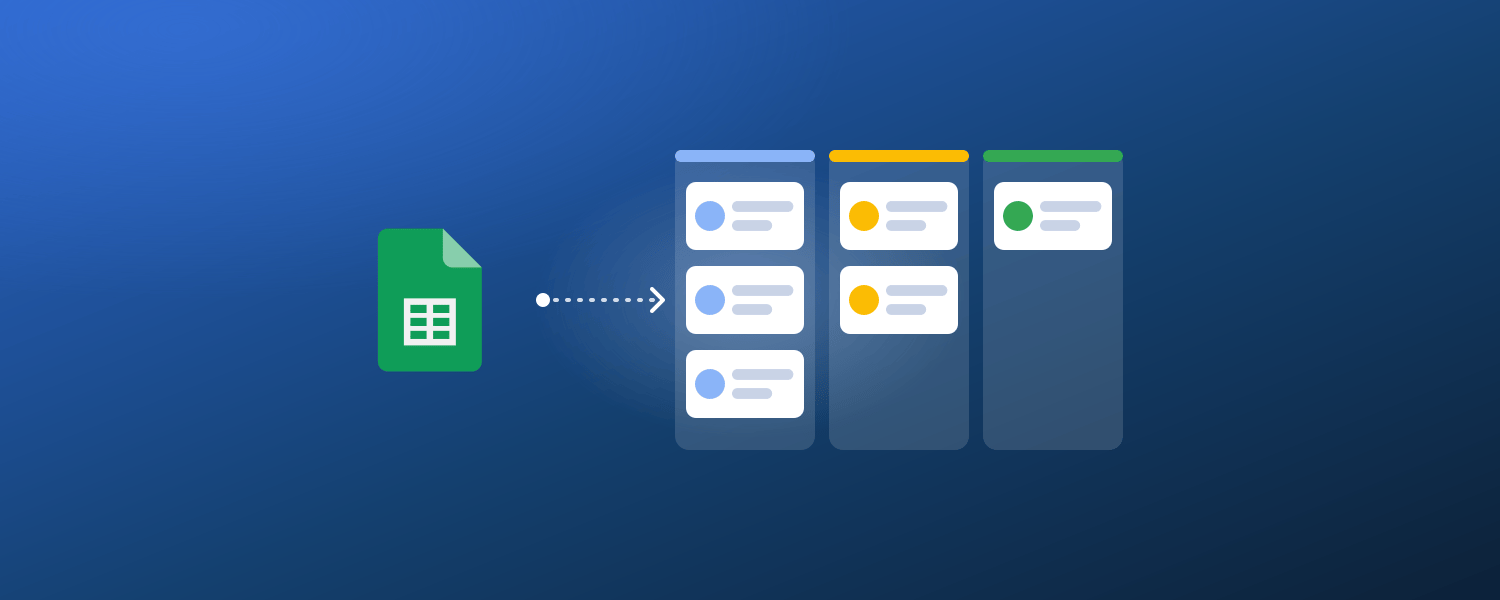
Notion turns the Deals tab into a board you drag cards across, with a page per deal for call notes and relations to the company and the person behind it.
The sheet doesn't have to go anywhere: with 2sync's Google Sheets integration, the tab and the database stay matched in both directions, so whoever prefers the sheet keeps editing it.
Setting it up takes a few minutes:
- Open the Google Sheets onboarding, click Choose a spreadsheet and pick your CRM file in the Google Drive window. 2sync can only open the spreadsheets you pick there.
- Choose the Deals tab. Each automation syncs one tab, so add a second automation if you want Contacts in Notion too.
- Connect a Notion database. Name its properties after your column headers and the columns map themselves.
- Map Stage to a Notion Status or Select property, then add a board view grouped by it.
- Choose a direction for each column: two-way for Stage, Next step and Follow-up date, while formula columns such as Contact name only ever go to Notion.
A few details matter once it runs:
- A hidden, protected 2sync ID column links each row to its page, so you can sort, insert rows and rename headers freely. Leave that column alone.
- When the same column changes on both sides between two syncs, the Notion value wins.
- Relations, people and files can't come from a sheet column, so they stay as Notion-only properties. That's where the link from a deal to its company page belongs.
- One automation syncs up to 10,000 rows. The Solo plan covers 3,000 synced items; Premium and Pro have no item limit.
- Changes sync every 2 to 5 minutes, depending on your plan, and deleting a row never deletes its Notion page unless you turn that on.
Give the deals a contacts database to point at
Deals belong to people, and in Notion those people can have pages of their own. Our free Circles of Trust template is a ready-made contacts database: a page per person with company, job title, email, phone and birthday, plus views by relationship tier, by network and by upcoming birthday.
It's organized around relationship tiers rather than deal stages, so it sits beside the Deals database instead of replacing it. Add a relation from Deals to it, and each contact page lists every deal linked to that person.
The template is built for 2sync's contact sync, so Google Contacts stays matched with it in both directions, and the numbers on your phone stay the same as the ones in Notion. Gmail can file emails into Notion too, each one related to the sender's contact page.
Build the sheet well before you replace it
A Google Sheets CRM is worth building properly before it's worth abandoning. Set up the three tabs, the stage dropdown and the overdue rule this week, and give everyone a filter view of their own.
When follow-ups start slipping or the team asks for a board, you don't have to start over. Keep the sheet everyone knows and put Notion beside it.
Keep your sheet, add a Notion pipeline
Sync your CRM tab with a Notion database in both directions, column by column. Every plan starts with a 14-day free trial.
FAQ
Can I use Google Sheets as a CRM?
Yes, for a freelancer or a small team. Use three tabs (Contacts, Deals, Activity) linked by an ID, a dropdown for the deal stage, a follow-up date with a conditional formatting rule for overdue deals, and a filter view per person. It won't log emails or send reminders on its own.
Does Google have a CRM?
Google Workspace doesn't include a CRM app. The Google Workspace Marketplace has a Sales & CRM category of third-party apps that connect to Gmail and Sheets, and Google's own Salesforce connector brings Salesforce data into Sheets.
Is there a free Google Sheets CRM template?
Google's pre-built tables cover project management, inventory management and event planning, and Google doesn't name a CRM among them. The tab and column list in this guide works as a template: paste the headers into a blank spreadsheet and convert each tab to a table.
How much does Google Sheets cost?
Nothing extra: anyone with a Google account can create spreadsheets. Google Workspace business plans start at $7 per user per month with a one-year commitment, or $8.40 on the flexible plan (Business Starter, US prices in October 2026).
How do I get follow-up reminders in Google Sheets?
A conditional formatting rule with TODAY() turns overdue deals red when you open the sheet, but it sends nothing. Edit notifications report changes, not due dates, so an emailed reminder needs an Apps Script time-driven trigger, which can email 100 recipients a day on a personal account and 1,500 on Google Workspace.
When should I move from a spreadsheet to a CRM?
When follow-ups slip, two people keep undoing each other's sorting, or you can't see a contact's history in one place. If others still rely on the sheet, keep it and sync it with a Notion database; if you need email tracking and sequences, move to a dedicated CRM.
How many contacts can a Google Sheets CRM hold?
Far more than a small business needs. A spreadsheet can hold up to 20 million cells since Google doubled the limit in September 2026. If you sync the sheet with 2sync, one automation handles up to 10,000 rows per tab.
Can Notion be used as a CRM?
Yes. A Notion database with a status property, relations and a board view covers a solo or small-team pipeline, as our Notion CRM guide shows. You can also keep a Google Sheets CRM and sync it with Notion both ways.