Quick answer
Microsoft To Do is Microsoft's free to-do app for Windows, Mac, iPhone, Android and the web, built into Outlook too. Sign in with a Microsoft account, make a list, add tasks, then pick today's work in My Day. Each task's detail pane holds due dates, reminders and steps, and emails you flag in Outlook arrive as tasks.
Microsoft To Do looks almost too plain at first: a column of lists and a box that says Add a task. Most of what makes it useful sits one click deeper, in the task's detail pane, the smart lists and the link to Outlook.
This guide covers each part in the order you'll reach for it, then the limits Microsoft documents but rarely puts on the front page.
How to create lists and tasks
Lists are the backbone. Make one per area of your life or work, then add tasks to them:
- Select New list at the bottom of the sidebar and type a name.
- Open the list, select Add a task, type the title and press Enter. The task goes to the bottom of the list.
- To group related lists (Home, Work, Side project), select the list group icon next to New list, name the group and drag lists into it.
Every account also has a built-in Tasks list. Anything you add from a smart list such as My Day is saved there.
To delete a task, open it and select the trash icon. If you delete one by mistake, Microsoft's fix goes through Outlook on desktop, signed in with the same account: open Deleted Items, right-click the task, then Move > Other Folder > Tasks.
How to plan your day with My Day
My Day is the feature worth building a habit around. It starts empty every morning, so you choose what today is for instead of staring at every open task.
- Add a task to it: open the task and select Add to My Day, or type a new task straight into My Day.
- Get suggestions: select the light bulb icon at the top of My Day to pick from tasks To Do suggests, including the ones you left unfinished yesterday.
- Let it reset: My Day clears every night. Unfinished tasks stay in their own list and come back as suggestions the next day.
Sorting My Day by importance moves the tasks you starred to the top, which is a quick way to see the two or three things that matter.
How to break a task into steps, notes and files
Select any task to open its detail pane on the right. That's where a one-line task becomes something you can actually finish.
- Steps: select Add step, type, press Enter. A counter under the task name shows progress, such as 1 of 3.
- Notes: select Add note for details, links or context. On the web you can format notes with bold, italics, underline and numbered lists.
- Files: attach a document to the task with Add file.
Steps are a plain checklist. Each one is a checkbox and a line of text, with no date, reminder or steps of its own, so treat them as a to-do list inside the task rather than as subtasks.
How to set due dates, reminders and repeats
The same detail pane holds the three scheduling options:
- Add due date: Today, Tomorrow, Next week or Pick a date.
- Remind me: Later today, Tomorrow, Next week or Pick a date & time.
- Repeat: Daily, Weekdays, Weekly, Monthly, Yearly or Custom.
One detail trips people up: a due date has no time. If a task has to happen at 3 p.m., set a reminder for 3 p.m. The reminder is the only date in To Do that carries a time.
Every task with a date also lands in the Planned smart list, grouped into Earlier, Today, Tomorrow and later. It is the closest thing To Do has to an agenda.
You can also type the schedule into the title. In the Windows app (version 2.66 or later), "Call the bank tomorrow 5pm" sets the reminder for you, and "every Monday" sets a repeat. The iOS app suggests dates the same way.
On Windows this only recognizes English. To turn it off, go to Settings and switch off Recognize dates and times in task titles.
How to use importance, tags and categories
To Do gives you three ways to label work, and they do different jobs:
- Importance: select the star on a task. Starred tasks appear in the Important smart list, and any list can be sorted by importance.
- Tags: add a hashtag to the title, like #work or #school. Select the tag, or search for it, to see every task, note and step that carries it, across all your lists.
- Categories: select Pick a category in the detail pane to apply the same color categories you use in Outlook, several per task if you like. Microsoft documents this on To Do for the web.
Tasks created from flagged emails inherit the email's categories, and the two stay in sync: change the category on the task and the email follows.
How to turn Outlook emails into tasks
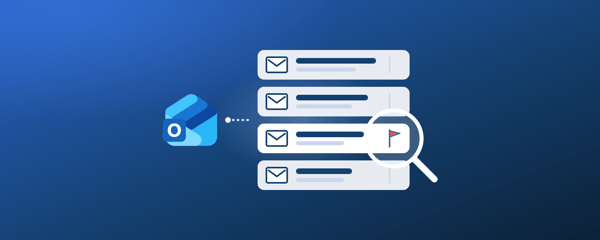
If your work runs through Outlook, this is the most useful connection To Do has. Flag an email in Outlook and it appears in To Do's Flagged email list, with the subject as the task name and a preview of the message inside.
To switch it on, open To Do's Settings and turn on Flagged email under Connections.
Microsoft lists a few conditions that explain most missing flagged emails:
- The mailbox must be hosted by Microsoft: Outlook.com, Hotmail, Live or a Microsoft 365 account, custom domains included.
- The first sync is limited: it brings in the 100 most recently flagged emails from the last 30 days. Every flag after that arrives as it happens.
- Only your primary mailbox counts: flags in shared mailboxes and shared folders don't sync.
- Flagged calendar events are skipped.
Once a flagged email is a task, you can rename it, give it a due date, add it to My Day or star it. Open in Outlook in the detail pane jumps back to the message.
In Outlook on Windows you can also drag an email onto the Tasks icon in the navigation pane to turn it into a task. And if you'd rather not flag by hand, an Outlook rule can flag matching mail as it arrives.
How to share a list and assign tasks
Shared lists work well for a household, a small team or a trip:
- Open a list you created and select the sharing icon at the top right.
- Select Create invitation link, then Copy link, and send the link by email or chat.
- To stop new people from joining, use Manage access > Limit access to current members. Stop sharing makes the list private again.
Sharing has one boundary to know before you send the link: it works between personal Microsoft accounts, or between accounts in the same work or school organization. A personal account can't join a work account's list.
Inside a shared list, open a task and select Assign to to give it to a member. On Windows you can type @ and a name while you create the task.
Everything assigned to you collects in the Assigned to you smart list, including tasks from Planner once you turn on the Planner connection in Settings. Move an assigned task to another list and the assignment is removed.
To Do, Outlook tasks and Planner: which does what
Microsoft has three task surfaces, and they overlap less than the names suggest:
| Microsoft To Do | Tasks in Outlook | Microsoft Planner | |
|---|---|---|---|
| What it is | Personal to-do app | The task view inside Outlook | Team plans with buckets and boards |
| Where the tasks are | Exchange Online | The same tasks as To Do | Plans tied to Microsoft 365 groups |
| Best for | Your own work and errands | Turning email into follow-ups | Shared projects with owners and stages |
Tasks in Outlook and To Do are one data set seen through two windows: add a task in either and it appears in the other.
The exception is classic Outlook's old task fields. Microsoft notes that To Do doesn't display task status, percent complete, several priority levels or work hours, although the data stays on the server.
Planner is a separate product for team work. Tasks someone assigns to you there can still reach you through To Do's Assigned to you list.
Keyboard shortcuts for Microsoft To Do on Windows
| Shortcut | What it does |
|---|---|
| Ctrl + N | Add a new task |
| Ctrl + L | Create a new list |
| Ctrl + T | Add the task to My Day |
| Ctrl + D | Complete the task |
| Ctrl + F | Search |
| Ctrl + R | Sync now |
Where Microsoft To Do stops
To Do is deliberately simple, and the gaps show once your tasks get tied to projects:
- No calendar view. Tasks never appear on a calendar by themselves. In new Outlook or Outlook on the web, you can drag a task from the My Day pane onto the calendar, which creates a separate event.
- No time on due dates. Only the reminder holds a time.
- No subtasks. Steps are a flat checklist.
- No custom fields, boards or timelines. A task has the fields Microsoft gives it and nothing else.
- Flagged email has limits. One mailbox, and a 100-message, 30-day window on the first sync.
None of these matter for a grocery list. They start to matter when the tasks belong to a client, a project plan or a content calendar you already run in Notion.
You don't have to give up To Do to fix that. Capturing in To Do, especially from flagged emails, stays fast, and Notion can hold the planning side: calendar and board views, relations to projects, and properties of your own.
To keep both in step, 2sync runs a two-way sync between To Do lists and a Notion database. A few behaviors carry over from how Microsoft models To Do:
- Steps reach Notion as text, one line each, and edits to them in Notion don't write back.
- Flagged emails sync to Notion, but tasks created in Notion can't be pushed into the Flagged email list.
- Due and start dates stay day-only, as they are in To Do.
- Recurring tasks add a new Notion page each time an occurrence is completed.
The full setup, and how it compares with Zapier, Make and Power Automate, is in how to sync Notion with Microsoft To Do.
Start with three habits
You don't need every feature on day one. Three habits cover most of the value:
- One list per area, grouped once you pass five or six.
- My Day every morning, picked from suggestions rather than from memory.
- Flag instead of retyping, so follow-ups from email land in To Do on their own.
Add steps, tags and shared lists when a task or a household needs them. If To Do starts feeling too small for a project, it's usually a sign the project wants a database, not that To Do has failed.
Comparing apps first? Microsoft To Do vs Todoist covers the most common alternative.
Bring your To Do lists into Notion
Two-way sync between Microsoft To Do and a Notion database, flagged emails included, so captured tasks land next to the projects they belong to.
FAQ
Is Microsoft To Do free?
Yes. Microsoft To Do is free on Windows, Mac, iPhone, iPad, Android and the web. You only need a Microsoft account, personal or work or school, and there is no paid tier of the app itself.
Is Microsoft To Do going away?
No. When Microsoft renamed the Teams app Tasks by Planner and To Do to Planner in April 2024, its Planner FAQ said there is no impact on existing user scenarios or functionality of To Do. The standalone apps are still updated: the iPhone and Mac apps reached version 2.177 in July 2026.
Is there a desktop version of Microsoft To Do?
Yes. There are free apps for Windows (Microsoft Store) and Mac (Mac App Store), alongside the web version at to-do.office.com. The Windows app adds keyboard shortcuts and typed dates such as 'tomorrow 5pm'.
What is the difference between Microsoft To Do and Outlook tasks?
They are the same tasks shown in two places. To Do stores tasks on Exchange Online, and Outlook displays that same data in its To Do or Tasks view. A few classic Outlook task fields, such as status and percent complete, are not displayed in To Do.
Is Microsoft To Do better than Google Tasks?
It depends on your email. To Do turns flagged Outlook emails into tasks and adds My Day, steps and shared lists; Google Tasks shows dated tasks inside Google Calendar and fits Gmail. See Microsoft To Do vs Google Tasks for a side-by-side.
What is the difference between Microsoft To Do and Planner?
To Do is for your own tasks; Planner is for team plans with buckets, boards and assignees. Tasks assigned to you in Planner can show up in To Do's Assigned to you list once the Planner connection is on.
Should I remove Microsoft To Do?
Only if you never use tasks. Removing the app doesn't delete anything, because your tasks are stored in your Microsoft account, and they stay visible in Outlook and on the web. If you flag emails in Outlook, To Do is where those follow-ups are easiest to work through.