Quick answer
In new Outlook and Outlook on the web, tasks are Microsoft To Do: select To Do in the left bar and use Add a task, or drag an email onto the To Do tab of the My Day pane. Classic Outlook keeps Tasks, the To-Do Bar and Assign Task. A flagged email becomes a task in every version.
Outlook has had a task list for decades, and in recent years Microsoft moved it onto To Do. The result is that "how do I make a task in Outlook" now has two answers, depending on which Outlook you open in the morning.
This guide covers both, plus the questions that come with the switch: where tasks went, how to assign one, and how to get them onto a calendar.
Which Outlook do you have?
Look at the ribbon. If you see a File tab, you're on classic Outlook for Windows. If there's no File tab, you're on new Outlook, which looks and works like Outlook on the web and Outlook.com.
| New Outlook and Outlook on the web | Classic Outlook for Windows | |
|---|---|---|
| Where tasks are | To Do in the left bar, plus the My Day pane | Tasks, the To-Do Bar and the Daily Task List in Calendar |
| New task | Add a task | New Task or Ctrl+Shift+K |
| Email to task | Flag it, or drag it onto My Day's To Do tab | Flag it, or drag it onto the Tasks icon or the To-Do Bar |
| Assign to someone | Shared To Do list or Planner | Assign Task |
| Task on the calendar | Drag it from My Day onto the calendar | Daily Task List under the calendar |
The tasks themselves are the same in both. Outlook and Microsoft To Do read one task list stored on Microsoft's Exchange Online servers, so a task you add in one shows up in the other.
How to create a task in new Outlook and Outlook on the web
- Select To Do in the bar on the left side of the window. The Tasks pane opens with your lists.
- Pick a list, or create one with New list.
- Select Add a task, type the task and press Enter.
If you add a task while a smart list like My Day is open, Outlook saves it in your default Tasks list and links it to the list you were in.
Select a task to open its details. From there you can add steps, a due date, a reminder or a repeat, add it to My Day, pick a category, attach a file or write a note.
Everything else To Do does (hashtags, list groups, shared lists, the Planned list) works here too. Our Microsoft To Do guide covers those features in depth.
How to turn an email into a task in Outlook
Most tasks in Outlook start life as an email. There are three ways to turn one into a task, and they behave differently:
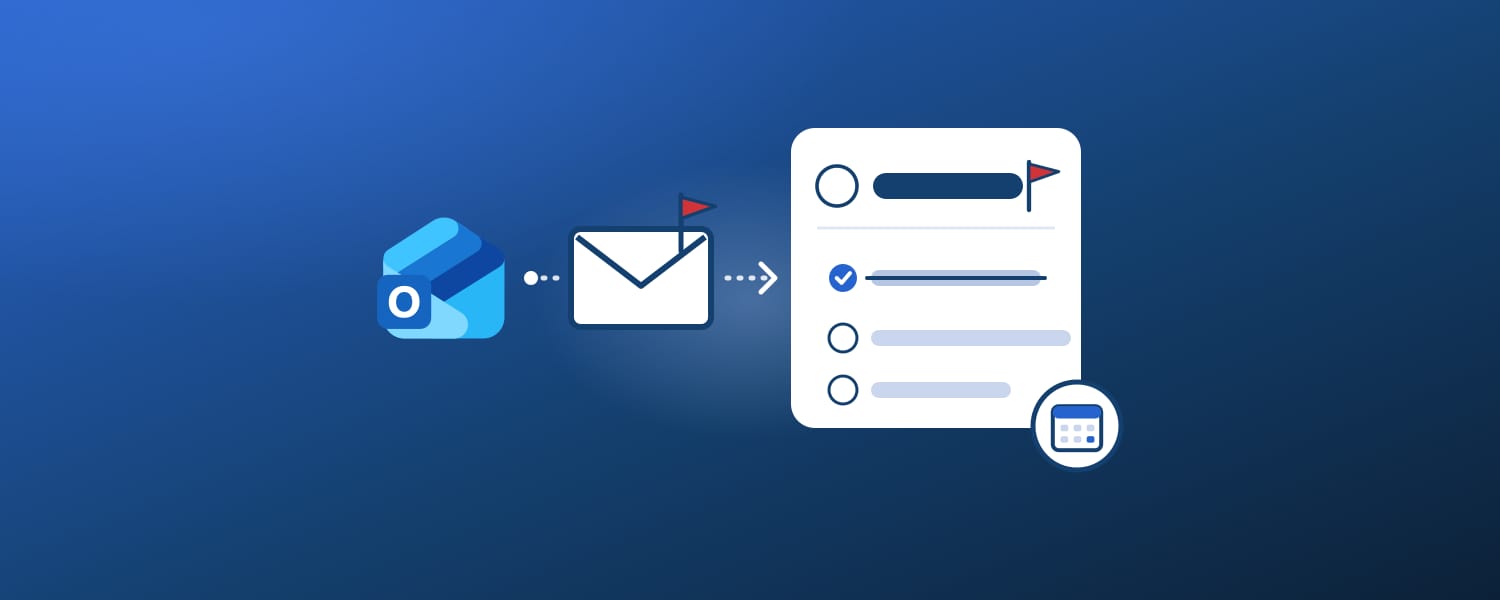
- Flag it. The message appears in To Do's Flagged email list in new Outlook, and in the To-Do List in classic Outlook. The flag points at the message, so the task is the email itself.
- Drag it (new Outlook and web). Open My Day from the toolbar at the top, then drag the message from your inbox onto the To Do tab of the pane. Outlook creates a separate task from it.
- Drag it (classic Outlook). Drag the message onto the Tasks icon in the navigation bar, or onto the To-Do Bar. To keep the original email attached, right-click and drag, then choose Copy Here as Task with Attachment.
The difference matters when you clean up your inbox. Microsoft spells it out for classic Outlook: delete a flagged message and it disappears from the To-Do List too, while a task created from the message stays, with the email's text copied into it.
Flagged emails reaching To Do have limits worth knowing. Only mailboxes hosted by Microsoft are supported, only your primary mailbox counts (not shared mailboxes), and the first sync brings in just the 100 most recent flags from the last 30 days.
If you'd rather not flag by hand, an Outlook rule can flag matching mail as it arrives.
How to see tasks next to your calendar
Tasks never land on the Outlook calendar by themselves, because a task has no time slot until you give it one. Each version gives you a way to keep both in view.
In new Outlook and on the web, select My Day on the toolbar at the top. A pane opens with a Calendar tab and a To Do tab, wherever you are in Outlook: mail, calendar or people.
To block time for a task, go to Calendar, open My Day, select the To Do tab and drag the task onto a time slot. Outlook creates a calendar event from it. The event and the task are separate from then on, so moving one doesn't move the other.
My Day itself is cleared at midnight every night. The tasks you put there stay in their own lists, so nothing is deleted.
In classic Outlook, turn on the To-Do Bar with View > Layout > To-Do Bar > Tasks. It keeps your task list on the right side of the window, and tasks also appear in the Daily Task List under the calendar.
How to use tasks in classic Outlook
Classic Outlook keeps the older task form, which has more fields than To Do. To create a task:
- Select Tasks in the navigation bar, then New Task. You can also use New Items > Task, or press Ctrl+Shift+K from anywhere.
- Type a short Subject, and put the details in the body.
- Set a Start date and a Due date if the task has them, and a Priority.
- Check Reminder and pick a date and time for a pop-up alert.
- Select Save & Close.
For quick capture, type in the Type a new task box at the top of the To-Do Bar and press Enter. The task is dated today.
When you finish a flagged email, right-click it and choose Follow Up > Mark Complete. The flag turns into a green check and the item leaves the To-Do Bar.
How to switch classic Outlook to To Do
Classic Outlook lets you choose which task experience opens. Outlook may offer the switch itself, in a blue Manage tasks with To Do callout with a Try it button.
To switch at any time, go to File > Options > Tasks and select Open tasks in the To Do app.
After the switch, the Tasks button moves under All Apps in the navigation bar, and New Items > Task opens To Do instead of the classic form.
Tasks you open from the To-Do Bar, a reminder or the Daily Task List open in To Do too. Clear the checkbox to switch back.
How to assign a task in Outlook
This is where the two Outlooks differ most.
Classic Outlook can send a task to someone else:
- Create a task with New Task or Ctrl+Shift+K.
- Select Assign Task, and enter a name or email address in To.
- Fill in the Subject, Start date and Due date, and a Recurrence if it repeats.
- Select Send.
The person has to accept or decline the task in Outlook for Windows. You follow progress through % Complete and the status reports they send, and View > Change View > Assigned lists everything you've handed out.
A task goes to one person. For a job three people share, Microsoft suggests three tasks, one each.
If assigned tasks are missing from your list, go to File > Options > Tasks and turn on Keep my task list updated with copies of tasks I assign to other people. It only applies to tasks you assign after turning it on.
New Outlook and Outlook on the web have no Assign Task command. A Microsoft support agent put it plainly on Microsoft Q&A in January 2026: tasks "cannot be assigned to other users directly from the To Do section in the new Outlook or Outlook on the web."
You have two options instead:
- A shared To Do list: share the list, then open a task and choose Assign to. This works for small groups and households.
- Planner: create the task in a plan and assign it there. It shows up in the person's Assigned to me list in To Do.
Why your Outlook tasks are missing
Most "my tasks disappeared" cases come down to one of these:
- You moved to new Outlook. Your tasks didn't go anywhere. They're under To Do in the left bar, because new Outlook has no separate Tasks module.
- Classic Outlook was switched to To Do. The Tasks button moved under All Apps (see above).
- A flagged email is missing. It's from a shared mailbox, it was flagged more than 30 days before you turned the list on, or the account isn't hosted by Microsoft. Finding flagged emails in Outlook covers the other causes.
- You deleted the message. A flagged email that you delete leaves your task list with it.
- Your organization turned tasks off. Microsoft notes that tasks may not be available, depending on your organization's settings.
- You're on your phone. The Outlook mobile app has no task list. Microsoft's answer is the free To Do app, signed in with the same account.
Where Outlook tasks stop, and what to pair them with
Outlook is a good place to capture tasks, especially from email. It's a weaker place to plan them:
- No calendar view of tasks. You drag them onto the calendar one at a time, and the event doesn't follow the task afterwards.
- No boards or timelines. A task list is the only layout.
- No time on To Do due dates. Only the reminder carries a time.
- Assigning needs Planner once you leave classic Outlook.
If your projects already run in Notion, you can keep capturing in Outlook and plan in Notion. 2sync's Microsoft To Do integration runs a two-way sync between your To Do lists (the same tasks Outlook shows) and a Notion database. Flagged emails come along too.
In Notion, those tasks get calendar, board and timeline views, relations to the projects they belong to, and properties of your own. Because Notion Calendar connects Outlook calendars, the dated tasks can sit on the same screen as your Outlook meetings.
A few behaviors carry over from how Microsoft models tasks: steps reach Notion as read-only text, tasks created in Notion can't be pushed into the Flagged email list, and dates stay day-only. The full walkthrough is in how to sync Notion with Microsoft To Do.
Pick one place to capture
The fastest way to stop losing tasks in Outlook is to decide where they start. For most people that's the flag: one click in the inbox, and the follow-up appears in To Do on every device.
Then add the habits that match your Outlook. On new Outlook, keep the My Day pane open and drag tasks onto the calendar when they need a slot. On classic Outlook, keep the To-Do Bar on, and use Assign Task for anything that belongs to someone else.
Plan your Outlook tasks in Notion
Two-way sync between Microsoft To Do, the tasks Outlook shows, and a Notion database, flagged emails included.
FAQ
Where can I find my tasks in Outlook?
In new Outlook and Outlook on the web, select To Do in the left bar, or open the My Day pane from the toolbar and choose the To Do tab. In classic Outlook, select Tasks in the navigation bar, or turn on the To-Do Bar with View > Layout > To-Do Bar > Tasks.
What is the difference between tasks and To Do in Outlook?
They hold the same tasks. Outlook and Microsoft To Do both read your task list from Exchange Online. New Outlook shows it through the To Do app, while classic Outlook can still use its older Tasks form, which has fields To Do doesn't display, such as status and % Complete.
Does Outlook have a task manager?
Yes. Every version of Outlook includes tasks: To Do inside new Outlook and Outlook on the web, and Tasks plus the To-Do Bar in classic Outlook. For team projects with boards and assignees, Microsoft's tool is Planner.
How do I get tasks on the Outlook app on my phone?
The Outlook mobile app has no task list. Install the free Microsoft To Do app and sign in with the same account: your Outlook tasks and flagged emails appear there. See our Microsoft To Do guide for how it works.
Can you assign tasks in new Outlook?
Not directly. New Outlook and Outlook on the web have no Assign Task command. Share a To Do list and use Assign to, or create the task in Planner, where it appears in the person's Assigned to me list. Classic Outlook still has Assign Task.
What happened to the to-do list in Outlook?
In new Outlook it became Microsoft To Do: the To Do icon in the left bar and the To Do tab of the My Day pane replace the classic Tasks module and To-Do Bar. Your existing tasks carry over because both read the same task list.
How do I set up a task list in Outlook?
In new Outlook, open To Do and select New list, then add tasks with Add a task. In classic Outlook, select Tasks and create tasks with New Task or Ctrl+Shift+K, or type them into the To-Do Bar.