Notion is where a lot of people keep their notes, tasks and projects, but the tools that run their day sit somewhere else: the calendar that holds their meetings, the task manager that holds their to-dos, the inbox that holds their follow-ups. A Notion integration closes that gap, so a change in one place shows up in the other without copy-paste.
This guide ranks the best Notion integrations by the job you are trying to do, from two-way calendar and task sync to no-code automation, email capture, and developer connections. For each category, you get the option we would reach for first and the trade-off that comes with it.
Quick answer
The best Notion integration depends on the job:
- Keep Notion matched to your calendar, tasks, contacts, or a spreadsheet, or bring email into it? A dedicated sync tool like 2sync is the cleanest fit.
- Fire an action across hundreds of apps when something happens? An automation platform like Zapier or Make fits better.
- Want a calendar app beside your Notion pages? Notion Calendar is the free native option.
At a glance: the best Notion integration for each job
| If you want to connect Notion to... | Reach for | Sync type |
|---|---|---|
| Google Calendar or Outlook Calendar | 2sync | Two-way |
| Todoist, Google Tasks, or Microsoft To Do | 2sync | Two-way |
| Gmail or Outlook email | 2sync | One-way into Notion |
| Google or Outlook contacts (a Notion CRM) | 2sync | Two-way |
| Google Sheets | 2sync | Two-way |
| 1,000+ apps with custom branching logic | Zapier or Make | Event automation |
| Your calendar, managed beside Notion pages | Notion Calendar | Native (calendar app) |
| Slack messages and notifications | Notion's Slack connection | Native |
| Saving web pages and articles | Notion Web Clipper | Native (capture) |
The sections below explain when each one is the right call. The short version: sync tools keep two systems continuously matched, automation platforms react to one-off events, and native connections handle scheduling, messages, and capture around Notion itself. Most people need one from the first group and maybe one from the others.
Notion calendar integrations (Google Calendar and Outlook)
A calendar integration puts your meetings and your Notion plan in the same workflow, instead of forcing you to check two places. There are two ways to do it, and they solve different problems.
Notion Calendar is the free native app. It connects Google Calendar and Outlook accounts as a full calendar client, so you create, edit, and delete events there, and it can surface a Notion date property as a calendar event.
It is excellent for planning and time-blocking, but it never writes those events into a Notion database, so it cannot turn a specific database into a fully editable, two-way calendar.
When you want a particular Notion database to behave like a calendar (create an event in Notion, have it appear in Google Calendar, edit it from your phone, and see the change reflected back), you need continuous two-way sync. To do that, 2sync runs a continuous sync, every 2 to 5 minutes, between a Notion database and your Google Calendar or Outlook Calendar, mapping title, date and time, location, attendees, description, and recurrence so both sides stay current automatically. Each event becomes an editable page in that database, which is what separates a sync from a calendar app.
This is the most common reason people connect anything to Notion at all: Google Calendar is the first integration 88% of 2sync users set up. If you want the step-by-step, our guides on syncing Notion with Google Calendar and syncing Notion with Outlook Calendar walk through the field mapping. For a closer look at what the native calendar app does and where a database sync takes over, see Notion Calendar vs Google Calendar.
Notion task integrations (Todoist, Google Tasks, and Microsoft To Do)
Plenty of people draft projects in Notion but capture quick tasks in a dedicated app, because a phone widget or a natural-language quick-add is faster than opening a database. A task integration lets you keep both without retyping anything.
Todoist is the most popular pairing here. With 2sync, tasks flow both ways between Notion and Todoist, carrying due dates, priorities, labels, sections, and projects, so completing a task in Todoist checks it off in Notion and vice versa. If you are deciding whether to run both apps or consolidate, Notion vs Todoist lays out the trade-off, and our guide to syncing Notion with Todoist covers the setup.
Google Tasks is the lighter, free alternative, and it suits people already inside Gmail and Google Calendar all day. 2sync syncs a Notion database with your Google Tasks lists in both directions; the Google Tasks complete guide and the Notion to Google Tasks how-to explain what carries over.
Microsoft To Do is the free option for people whose mail and calendar run on Microsoft 365. 2sync syncs your Microsoft To Do lists with a Notion database both ways, carrying notes, due dates, reminders, importance, categories, and status, and emails you flag in Outlook arrive as tasks too.
To Do has no subtasks, so if you need a task hierarchy in Notion, Todoist or Google Tasks carries it. For the setup itself, see how to sync Notion with Microsoft To Do, and for how it compares with Todoist, see Microsoft To Do vs Todoist.
A couple of task-focused tools exist too, such as Pleexy and TaskClone, but they mirror your tasks into a separate to-do app rather than making Notion the two-way hub, with thinner field mapping than a dedicated Notion sync. Broader two-way sync platforms cover Notion as well; if you are weighing those, 2sync vs Unito and 2sync vs Whalesync show where each one fits against a Notion-first sync.
Notion email integrations (Gmail and Outlook)
Turning an email into a tracked task or a reference note is one of the highest-value things you can connect to Notion, and it is one of the least served by native tools. Notion has no built-in way to pull your inbox in, so getting Gmail into a Notion database comes down to a sync tool, an automation platform, a sidebar add-on, or your own script, and getting Outlook Mail into Notion follows the same set of options.
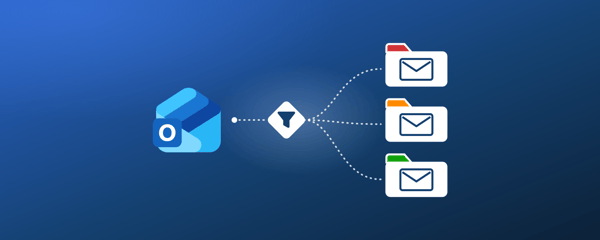
To do it, 2sync imports messages from Gmail or Outlook Mail into a Notion database, carrying the subject, sender, recipients, labels, a preview snippet, and a link back to the original. Email sync runs one way, from your inbox into Notion, which is exactly what you want for an archive or a follow-up tracker you manage from Notion. A browser tool like Save to Notion covers the manual, one-message-at-a-time case, while a sync handles the inbox continuously.
This pairs naturally with the task setup above: route client emails into a Notion database, then work them as tasks alongside everything else. The Gmail integration handles that setup, including the label filter that decides which messages make the trip. It is a small piece of plumbing that removes a surprising amount of inbox-to-workspace copy-paste. For how this stacks up against Notion's own email options, see Notion Mail vs the AI connector vs 2sync.
Notion Mail shut down on 22 September 2026, so anyone who used it to land mail in a database needs a new route. The export window for Notion-Mail-only data closed on 21 September 2026. Where your Gmail goes next covers the options that are still open and how to keep mail flowing into Notion.
Notion contacts and CRM integrations
If you run a lightweight CRM in Notion, your contacts are only useful when they match the people in your phone and your email. A contacts integration keeps the two aligned so you are not maintaining the same address book twice.
2sync syncs Google Contacts and Outlook Contacts with a Notion database in both directions, including names, emails, phone numbers, companies, and job titles, and it can match a contact to a related record using email or name. That last part is what turns a flat list into a real CRM: a synced contact can link to the deal, project, or meeting it belongs to. How to sync Notion with Google Contacts walks through the Google side step by step. To see the CRM pattern in practice:
- Build one from scratch with our Notion personal CRM guide.
- Start from the Microsoft side with using Outlook contacts as a CRM.
- See a team running it in the Hieronymus Machine customer story.
Notion spreadsheet integrations (Google Sheets)
Budgets, inventories, form responses, and exports from other tools usually start out in a spreadsheet. Notion can import a CSV once, but it has no native Google Sheets sync, so that import is out of date the moment someone edits the sheet.
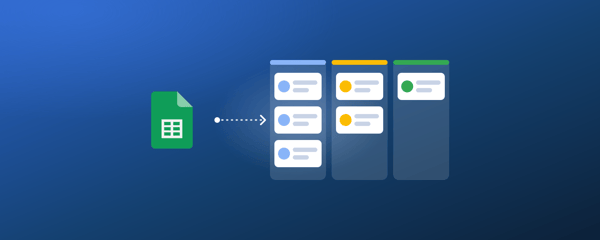
To keep the two matched, 2sync links one tab of a spreadsheet with one Notion database and syncs rows in both directions. Each column maps to a Notion property (text, number, date, checkbox, or a dropdown list as a select), and you choose the direction column by column. Formula columns sync to Notion only, so the sheet keeps doing the math.
A hidden 2sync ID column keeps every row linked to its Notion page. You can sort the sheet, insert rows, or rename headers and nothing breaks. If you are still weighing that against an embed, a one-time import or a Zapier recipe, every way to connect Google Sheets and Notion compares what each one does to your edits, dedicated sync tools included. A few limits to know before you set it up:
- One automation syncs one tab, with up to 10,000 data rows.
- Row deletion stays off until you turn on Allow row deletion.
- If the same cell changes on both sides between syncs, the Notion value wins.
The Google Sheets integration walks through the setup. 2sync asks for access to your spreadsheets only, not to the rest of your Google Drive.
Notion automation integrations (Zapier, Make, and n8n)
Sync and automation get lumped together, but they are different jobs. A sync keeps two systems continuously matched; an automation fires a single action when a trigger happens, like creating a Notion row when a form is submitted or posting to Slack when a status changes.
The big automation platforms each take a different approach:
- Zapier is the most approachable, connecting Notion to thousands of apps through trigger-and-action recipes.
- Make gives you a visual builder with branching and loops for more complex flows, usually at a lower price. If it does not fit, see these Make alternatives for Notion.
- n8n is the developer-friendly, self-hostable option for teams that want to own their stack.
These platforms are powerful, but most run on a per-task or per-operation model and move data one event at a time rather than keeping a database and a calendar permanently in step.
For Notion users specifically, the choice often comes down to whether you need automation or sync:
- If your goal is keeping Notion matched to your calendar, tasks, or a spreadsheet, a dedicated sync is simpler and cheaper than a metered automation. See where each approach fits in 2sync vs Zapier, 2sync vs Make, and 2sync vs n8n.
- If you need true automation across many apps, our roundup of affordable Zapier alternatives for Notion and the Zapier vs Make comparison will narrow it down.
Notion communication and capture integrations (Slack and Web Clipper)
Some integrations are about getting information into Notion rather than syncing it out. These are mostly native and mostly free.
Notion's Slack connection posts updates and lets you reference Notion pages without leaving a channel, which is handy for teams that run standups and notifications in Slack.
The Notion Web Clipper saves web pages and articles straight into a database, and a handful of browser extensions extend that capture further; our guide to the best Notion Chrome extensions covers the ones worth installing. None of these keep two systems matched the way a sync does, but they are the right tool when the job is one-way capture.
Notion developer integrations (API, GitHub, and Google Drive)
If you write code or want to build something custom, Notion's own platform is the foundation. The Notion API lets you read and write to databases programmatically, and it is what most third-party connections are built on.
Notion Workers sit alongside the API for teams on Business or Enterprise: you write a TypeScript sync, Notion hosts it, and outside records land in a database. Runs are free during the beta, and Notion says they will eventually bill against the same Notion credits that Notion AI spends. The catch is that a Worker sync only runs one way and locks the columns it owns, so it suits reporting mirrors rather than anything you edit in Notion.
Out of the box, Notion connects to GitHub for linking issues and pull requests to pages, and to Google Drive for embedding and previewing files. Notion lists these connections in its own gallery, and they are free to enable. They are aimed at engineering and documentation workflows rather than the calendar, task, and email syncing most people come here for, but they round out what the platform can do.
How to choose the right Notion integration
Work backward from the job, not the tool. Three questions settle most decisions:
- Do you need sync or automation? If you want two systems to stay continuously matched (Notion and your calendar, tasks, contacts, or email), choose a sync tool. If you want a one-time action when an event happens, choose an automation platform. Picking the wrong category is the most common mistake, and it usually shows up as a metered automation bill for something a flat-rate sync would have handled.
- Do you need one direction or two? A one-way flow (email into Notion, or Notion tasks into a calendar view) is simpler and often free. Two-way sync is what you want when you will edit the data in both apps and expect both to stay correct. Nearly 79% of 2sync users choose two-way sync precisely because they work from whichever app is open at the time.
- Where will you actually do the work? If the answer is Notion most of the time, lean toward syncing your existing apps into it so Notion stays the source of truth. If you genuinely split your day across apps, two-way sync keeps every side honest.
Why a dedicated sync tool fits Notion so well
2sync was built for exactly this: keeping Notion matched to the apps you already run your day in. It connects Notion with your calendars (Google Calendar, Outlook Calendar), task apps (Todoist, Google Tasks, Microsoft To Do), contacts (Google Contacts, Outlook Contacts), Google Sheets, and email (Gmail, Outlook Mail), with true two-way sync for calendars, tasks, contacts, and spreadsheets (email comes in one way), field-level mapping so each property maps where you want, and a sync that runs every 2 to 5 minutes. We have processed over 2.5 million synced items across 127,000+ accounts in 202 countries.
Free Notion templates from 2sync
You do not have to build the Notion side from scratch. We publish free templates in the Notion gallery, each pre-built for one of the most popular syncs:
- Circles of Trust is a personal CRM that sorts contacts into relationship tiers and pairs with a Google or Outlook contacts sync.
- Todoist for Notion mirrors your Todoist tasks into a ready-made database.
- Google Calendar for Notion gives you a calendar database wired to sync your events.
Each one is free, so it works as the Notion-side starting point for the syncs above.
Connect Notion to the tools you already use
The best Notion integration is the one that matches the job: a two-way sync for your calendar, tasks, contacts, and spreadsheets, with email brought in one way; an automation platform for event-driven workflows across many apps; and Notion's native connections for scheduling, messages, and capture. For most people, the win is small but daily: stop copying the same meeting, task, or contact into two places, and let one change update everywhere.
If that is the problem you are solving, syncing your calendar and tasks into Notion is the fastest place to start, and you can have the first automation running in a few minutes.
Make Notion your single source of truth
Sync Notion two-way with your calendar, tasks, contacts, and spreadsheets, bring your email in, and control every field. Try 2sync free for 14 days.
FAQ
Does Notion have built-in integrations?
Yes. Notion connects to tools like Slack, GitHub, Google Drive, and Jira through its connection gallery and API, and Notion Calendar works as a calendar app for Google and Outlook accounts, though it never writes their events into a database. For continuous two-way database sync with your calendar, tasks, or contacts, you add a dedicated sync tool such as 2sync.
How do I sync Notion with Google Calendar?
Use a two-way sync tool. 2sync maps a Notion database to your Google Calendar and keeps events matched in both directions on a 2 to 5 minute cycle, carrying title, date and time, location, attendees, and recurrence. Notion Calendar can also display a calendar next to your pages, but it does not turn a specific database into a fully editable two-way calendar.
Can I sync Notion and Todoist two way?
Yes. 2sync mirrors tasks between Notion and Todoist in both directions, including due dates, priorities, labels, sections, and projects. Completing or editing a task in either app updates the other automatically.
Can I save Gmail or Outlook emails to Notion?
Yes. 2sync imports messages from Gmail and Outlook into a Notion database, carrying the subject, sender, recipients, labels, a preview snippet, and a link to the original. Email sync runs one way, from your inbox into Notion, which suits an archive or a follow-up tracker you manage from Notion.
What is the best free Notion integration?
Notion's native connections (Slack, GitHub, Google Drive) and the Web Clipper are free, and Notion Calendar is free for viewing your calendars. Most two-way sync and automation tools run on a subscription after a trial; 2sync includes a 14-day free trial with full access to every integration.
What is the difference between a Notion integration and an automation?
A sync keeps two systems continuously matched, like Notion and your calendar staying identical in both directions. An automation fires a single action when a trigger happens, like creating a Notion row when an email arrives. 2sync handles sync; Zapier, Make, and n8n handle automation.
Do Notion integrations work on mobile?
Synced data appears anywhere you open Notion, including the mobile apps, because the sync runs in the cloud rather than on your device. You set up an integration once on the web, and it keeps running without the setup tool open.